Grade Assignments and Provide Feedback
Choose submissions to grade
- Open Main Menu and select Grading.
- Choose a class from the Class menu.
- Choose an assignment from the Assignment menu.
The Grading window lists students, attempts, submission status and time, late status, scores, and available actions.
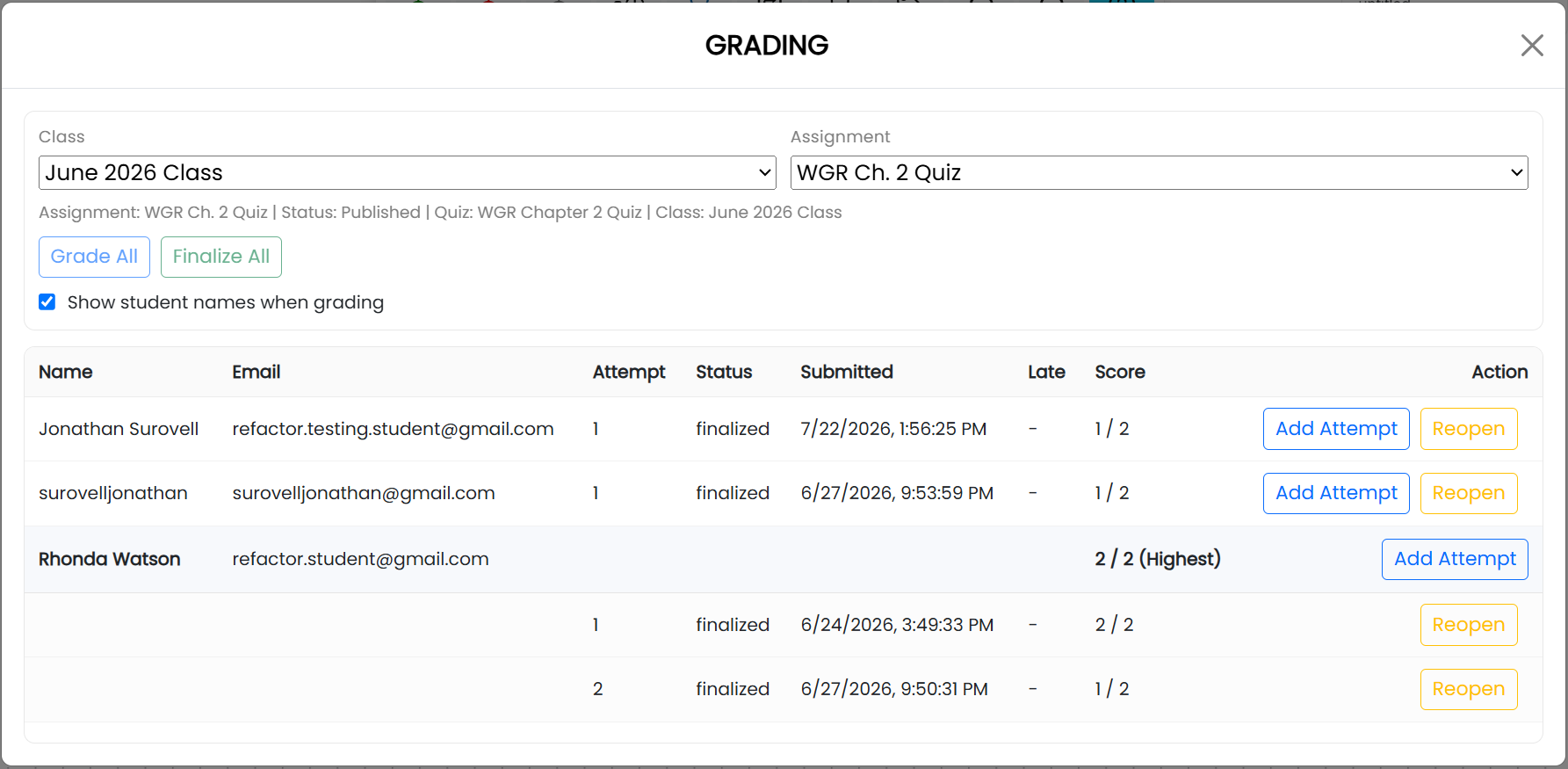
Select Grade All to grade submissions in sequence, or select Grade beside an individual submission.
Score a submission and provide feedback
In grading mode, the student’s answer appears beside the instructor-prepared solution. The question prompt and student notes appear in the Scratchpad panel.
Use the grading toolbar to assign a score for each question. Add written feedback in the grading-notes area. Select Done to save the score and feedback and return to the grading workflow.
Release grades and feedback
Select Finalize beside a graded attempt when its score and feedback are ready for the student. Select Finalize All to finalize all graded attempts for the selected assignment.
To change a finalized grade or its feedback, select Reopen, revise the grading, and finalize it again when ready.
Allow another attempt
Select Add Attempt beside a student to allow that student an additional attempt on the assignment.