Apply Color Tags
Color tags can distinguish speakers, positions, sides of a debate, or other categories chosen by the map’s author. A tag changes the background color of a box’s text area without changing the box’s logical type.
Available tags are purple, orange, tan, red, rose, and grey.
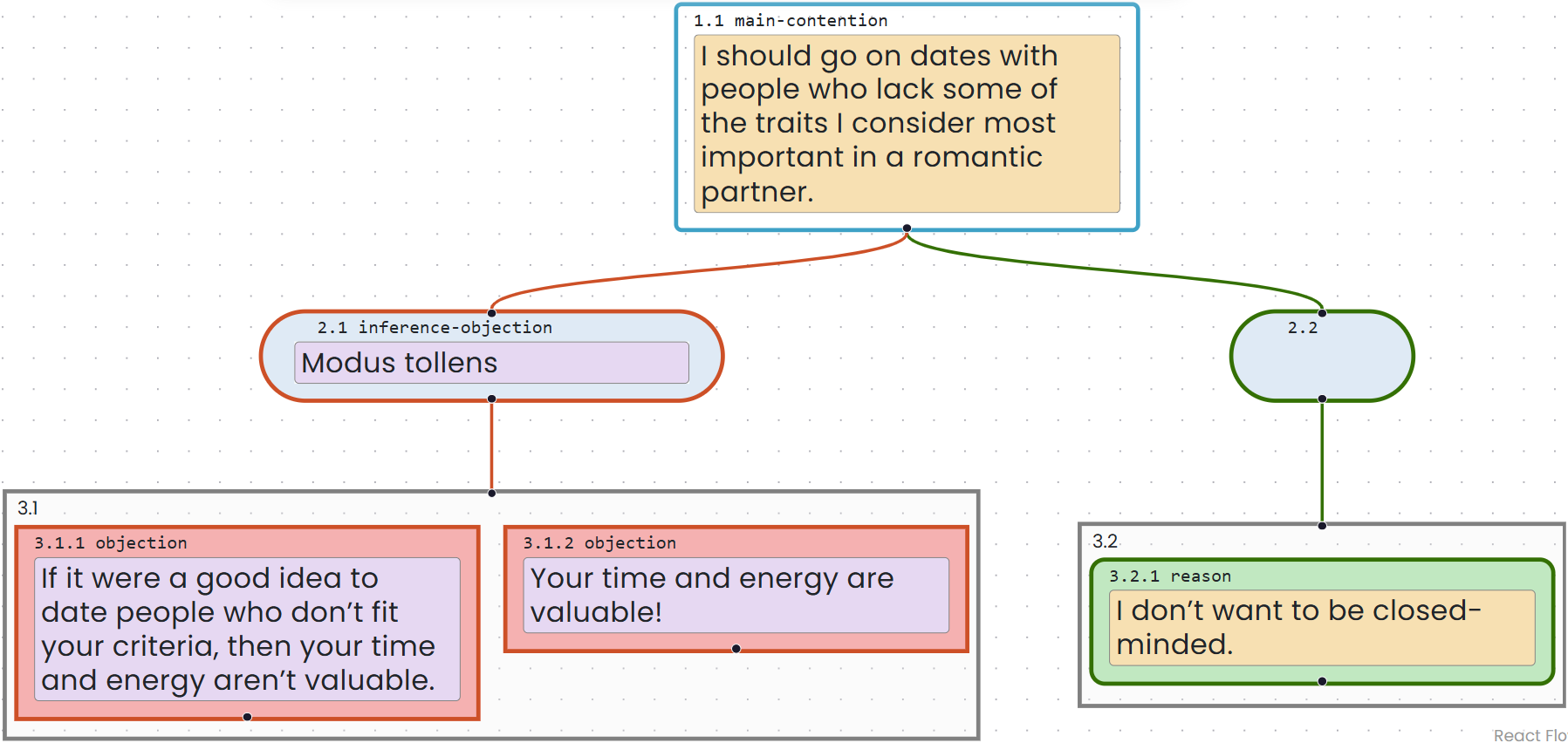
Apply a tag
- Select a box or group.
- Select Tag in the toolbar. On Windows, you can instead press
Shift+Alt+T; on Mac, pressShift+Option+T. - Select a color from the Tag Node window.
The selected box or group is tagged with that color.
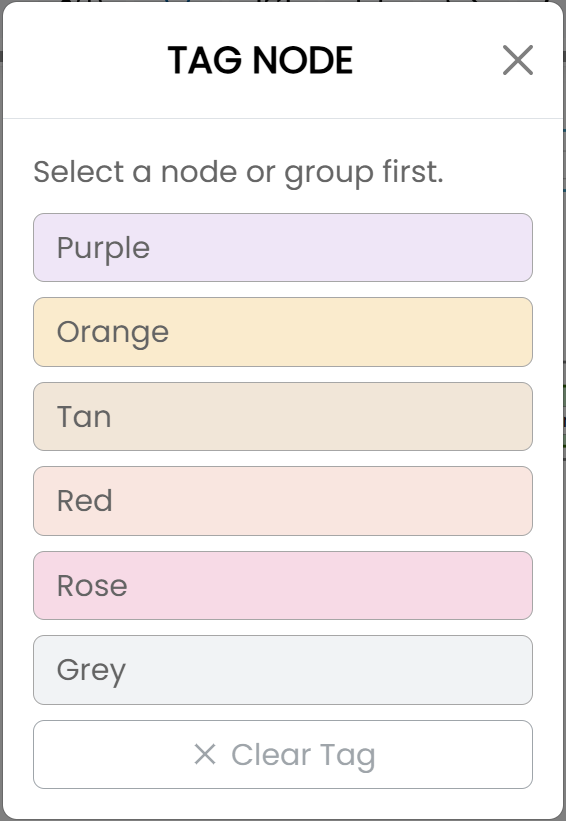
Use the Tag menu with a keyboard
- Select a box or group.
- Open the Tag menu with
Shift+Alt+Ton Windows orShift+Option+Ton Mac. - Press
Tabto move to the first color. - Use the Up and Down arrow keys to move among the colors.
- Press
Enterto apply the selected color.
Remove a tag
- Select the tagged box or group.
- Open the Tag menu.
- Select Clear Tag.
The text area returns to its default white background.
Tags are retained when maps are saved or shared and appear in exported maps. Screen readers announce the tag color of a selected box.